How to Redeem an App Store Promo Code on iPhone or Mac
How to redeem an App Store code on iPhone, iPad or Mac - gift cards, promo codes, and what to do when one will not apply.
By Mohith K MUpdated 3 min read
Redeeming an App Store code is an easy way to access premium apps, subscriptions, or gift card credits for your iPhone, iPad, or Mac. Whether you’ve received a gift card or a promo code, this guide will help you redeem it without any hassle. Follow these simple steps to redeem your App Store code and enjoy your benefits.

What is an App Store Promo Code?
An App Store code can be a gift card code, a promo code for an app, or a subscription service. It adds credit to your Apple ID account or provides direct access to a product or service.
How to Redeem an App Store Code on iPhone or iPad
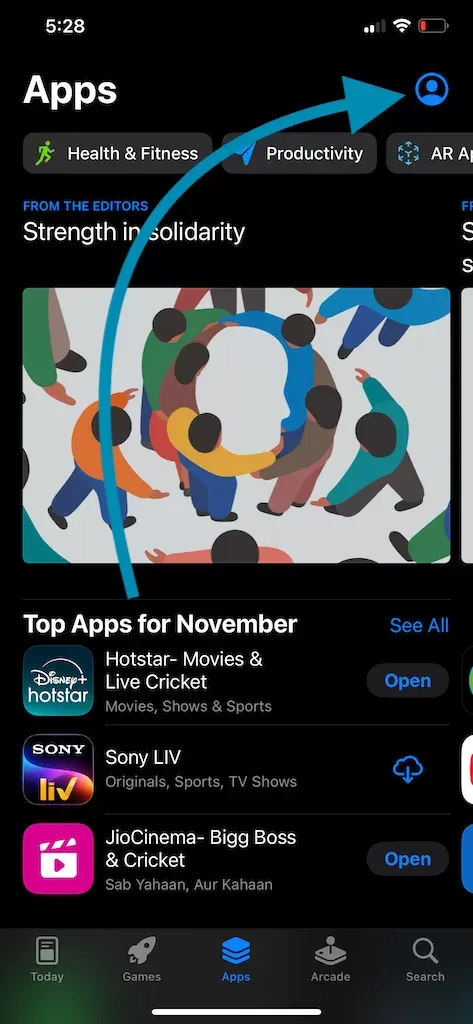
- Open the App Store: Launch the App Store app on your iPhone or iPad.
- Tap Your Profile Picture: Located in the top-right corner of the screen, this opens your account page.
- Select “Redeem Gift Card or Code”: Scroll down and tap this option.
- Choose How to Enter the Code:
- Use Camera: If you have a physical gift card with a scannable code, use your device’s camera to redeem it automatically.
- Enter Code Manually: Type the code found on your gift card or in your email and tap “Redeem.”
- Confirm and Enjoy: After successful redemption, your credit or app will be available for immediate use.


How to Redeem an App Store Code on a Mac
- Open the App Store: Click the App Store icon in the Dock or find it via Spotlight Search.
- Sign In: Ensure you are signed in with your Apple ID.
- Click Your Name or Profile: Located at the bottom-left corner of the App Store window.
- Select “Redeem Gift Card or Code”: A new window will appear.
- Enter the Code:
- If you have a physical card, you can scan the code using your Mac’s camera.
- Alternatively, enter the code manually.
- Confirm: Your credit will be added, or the app will be downloaded instantly.
Where Can You Use App Store Credit?
- Purchase apps or games.
- Pay for in-app purchases.
- Subscribe to services like Apple Music, Apple Arcade, or iCloud+.
- Buy books, movies, or TV shows on Apple Books or Apple TV.
What to Do If the App Store Code Isn’t Working?
- Double-Check the Code: Ensure the code is entered correctly.
- Check Region Restrictions: Some codes are region-specific and may not work in your country.
- Ensure Code Isn’t Expired: Promo codes often have expiry dates.
- Contact Apple Support: If the issue persists, Apple Support can help resolve it.
Benefits of Redeeming App Store Codes
- Access exclusive apps or services for free.
- Enjoy discounted subscriptions.
- Add value to your Apple ID for future purchases.
Pro Tips for Using App Store Codes
- Keep Codes Secure: Store your gift cards or promo emails safely to avoid losing them.
- Combine Multiple Codes: Add multiple codes to build up your Apple ID balance.
- Use on Family Sharing: Credits can often be used for shared purchases if Family Sharing is enabled.
By following this guide, you can easily redeem any App Store code on your iPhone, iPad, or Mac. Whether you’re adding credit or unlocking a premium app, it’s a quick and simple process. Bookmark this guide for future reference, and enjoy your new purchases or subscriptions!
Don’t forget: If you’re a photography enthusiast, consider using the EXIF Viewer by Fluntro app to manage and analyze your photo metadata efficiently.