Photo GPS location and geotagging on iPhone
iPhone photos carry latitude, longitude, altitude, compass direction and even speed. That's brilliant for organising a trip and dangerous when you post a photo of your front door. This hub covers reading, adding, fixing and removing photo locations.
4.7· 1.9K ratingsFeatured by Apple

The two-tap way, with EXIF Viewer
- 1
See exactly where a photo was taken
Open it in EXIF Viewer or via the share sheet: coordinates, altitude, direction and a map with satellite view. Tap the map to open Apple Maps or Google Maps.
- 2
Browse your library on a map
Map view clusters every geotagged photo. Zoom in to a city or a street and tap any photo for its full metadata.
- 3
Add, fix or remove
Select photos, tap Edit Location to search or drop a pin, or Remove Location to strip it.
Step-by-step guides
16 articles in this topic.
How to see where Photo was taken iPhone
How to see where a photo was taken on iPhone: viewing the location, enabling location services, and managing the EXIF that stores it.
Updated December 15, 2024
How to Turn Photo Geotagging On or Off on iPhone
Learn how to enable or disable photo geotagging on your iPhone or iPad. Follow easy steps to manage location settings for your photos and enhance privacy. Read more!
Updated October 31, 2024

How to Add Geotags to Photos ?
Adding photo geotags allows you to record the location where the photo was taken, which can be useful for sharing and documenting your images.
Updated October 31, 2024

How to Bulk Edit EXIF Date and Location on iPhone & iPad
Learn how to bulk edit EXIF data, dates, and locations on iPhone and iPad. Save time managing your photos with these quick and easy tips.
Updated October 19, 2024
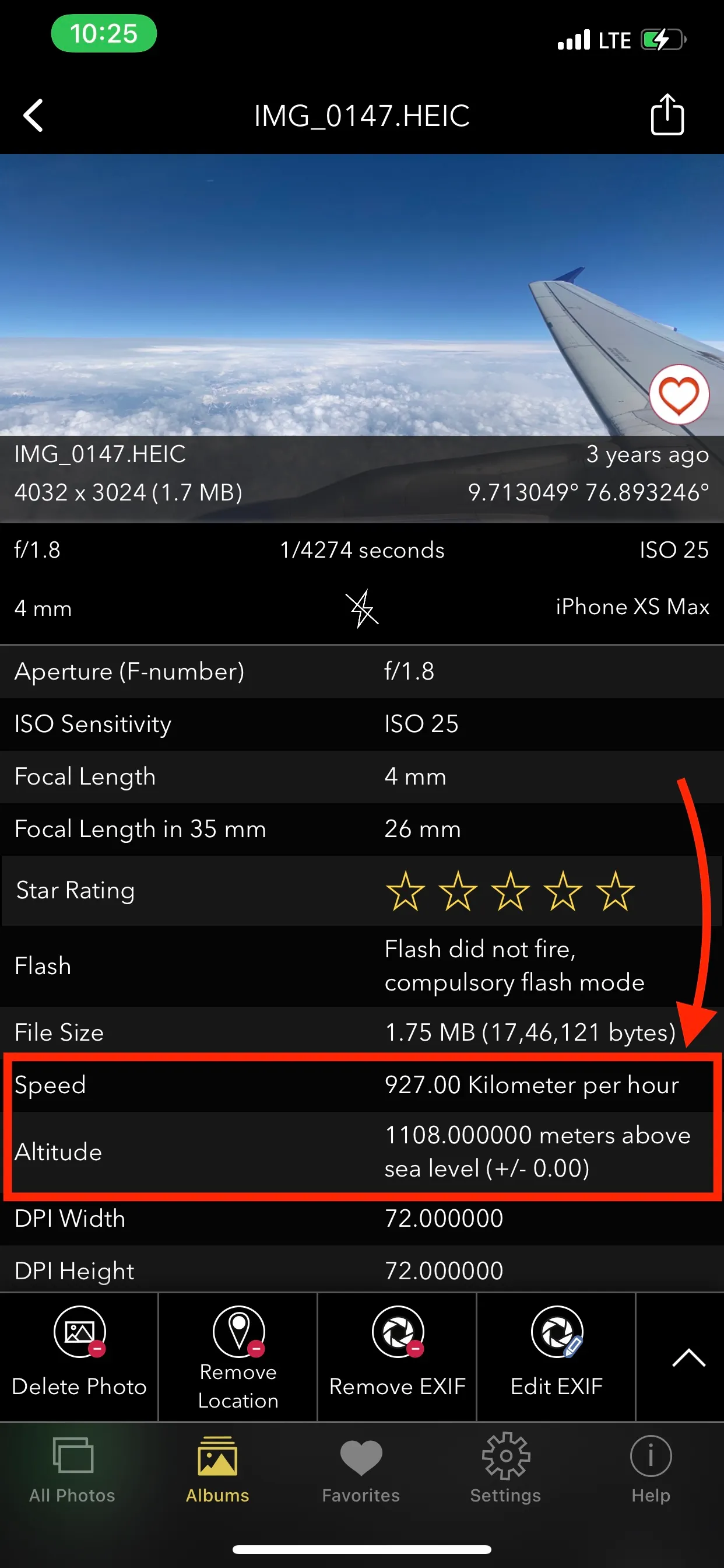
How to Check the Altitude and Speed a Photo Was Taken At
How to check the altitude and speed recorded in a photo's EXIF GPS data - useful for drone shots, hiking and iPhone photos.
Updated October 15, 2024
Find Photo Details and Location on iPhone and iPad
Accessing EXIF metadata is relatively straightforward. Here’s how you can do it: There are apps that can display EXIF metadata for images saved on your
Updated October 15, 2024

How to Find and View EXIF Location Data on Your Photos
How to find and view the GPS location stored in a photo on iPhone, Android, Windows and Mac - and how to remove it before you share.
Updated October 10, 2024
What is Geotagging in Photography?
Geotagging is the practice of adding geographical location data, such as latitude and longitude coordinates, to a photo's metadata.
Updated September 30, 2024

Geotagging and Timestamps: How Photos Record Where and When
Learn about geotagging and timestamps in photos and how Fluntro's EXIF Viewer iOS app makes it easy to understand this info.
Updated September 29, 2024

Geotagging and EXIF: How Location Is Stored in a Photo
How geotagging and EXIF metadata work together to store location in a photo, and how accurate that location actually is.
Updated September 29, 2024

Camera Geotagger for Nikon and Canon
A camera geotagger for a DSLR (Digital Single-Lens Reflex) camera is a device or solution that allows you to add location information.
Updated September 29, 2024

How to View GPS Coordinates of Photos on iPhone or iPad
How to view GPS Coordinates of Photo or image on your iPhone or iPad. View Photos location Using Apple’s Photos App for Free
Updated September 27, 2024
How to Fix iPhone Photos Not Showing Location?
Why iPhone photos stop showing location, and how to fix it - location services, settings, and the cases where the data is simply gone.
Updated September 27, 2024

Geotagging with EXIF Data: Adding Location to Photos
Geotagging with EXIF data is a powerful tool that enhances the storytelling potential of your photography.
Updated September 24, 2024

How to open Photos location on google map or Apple Map
How to open a photo's location on Google Maps or Apple Maps from its GPS coordinates, on iPhone and iPad.
Updated July 6, 2024

Solmeta GMax Geotagger for Nikon and Canon
The Solmeta GMax provides real-time geotagging, automatically adding GPS coordinates to the metadata of your photos as you capture them.
Updated June 2, 2024
Questions
Short answers first; the guides above go deeper.
Other topics
How do I turn off location on iPhone camera?
Settings → Privacy & Security → Location Services → Camera → Never. Existing photos keep their location until you remove it.
Why does a photo have no location?
Location Services were off, the photo was received through a messaging app or social network that strips GPS, it's a screenshot, or it was taken with a camera without GPS.
How accurate is iPhone photo GPS?
Typically 3–10 metres outdoors. The GPSHPositioningError field in EXIF stores the estimated accuracy for each photo.
Every photo has a story in its metadata. Read it, fix it, or erase it.
$6.99 once — lifetime. Buy once, use on iPhone and iPad. No monthly subscription, no ads, no account.
4.7· 1.9K ratingsFeatured by Apple

On a computer?
Scan to install on your iPhone or iPad using camera app.