How to Lock Photos on Your iPhone: A Step-by-Step Guide
In today's digital age, keeping your personal photos safe and private is more important than ever. If you use an iPhone, you might be wondering how you can
By Mohith K MUpdated 3 min read
Step-by-Step Guide: How to Lock Photos on Your iPhone for Ultimate Privacy
In today’s digital age, keeping your personal photos safe and private is more important than ever. If you use an iPhone, you might be wondering how you can lock your photos to ensure they are protected from prying eyes. This guide will walk you through the steps to secure your photos on your iPhone.
Why Lock Your Photos?
Before we dive into the steps, let’s quickly understand why you might want to lock your photos:
- Privacy: Personal photos often contain sensitive information that you might not want to share with others.
- Security: In case your phone gets lost or stolen, locked photos can prevent unauthorized access.
- Peace of Mind: Knowing your private moments are secure can give you peace of mind.
Methods to Lock Photos on iPhone
There are a few different ways to lock your photos on an iPhone. Here are the most effective methods:
- Using the Notes App
- Using Third-Party Apps
- Using the Hidden Album Feature
Method 1: Using the Hidden Album Feature
iPhone has a built-in feature to hide photos, although it’s not as secure as the other methods:
- Hide Photos:
- Open the Photos app and select the photo(s) you want to hide.
- Tap the Share icon and select “Hide”.
- Access Hidden Album:
- Hidden photos are moved to a Hidden album in the Photos app.
- To access this album, go to Albums and scroll down to find “Hidden”.
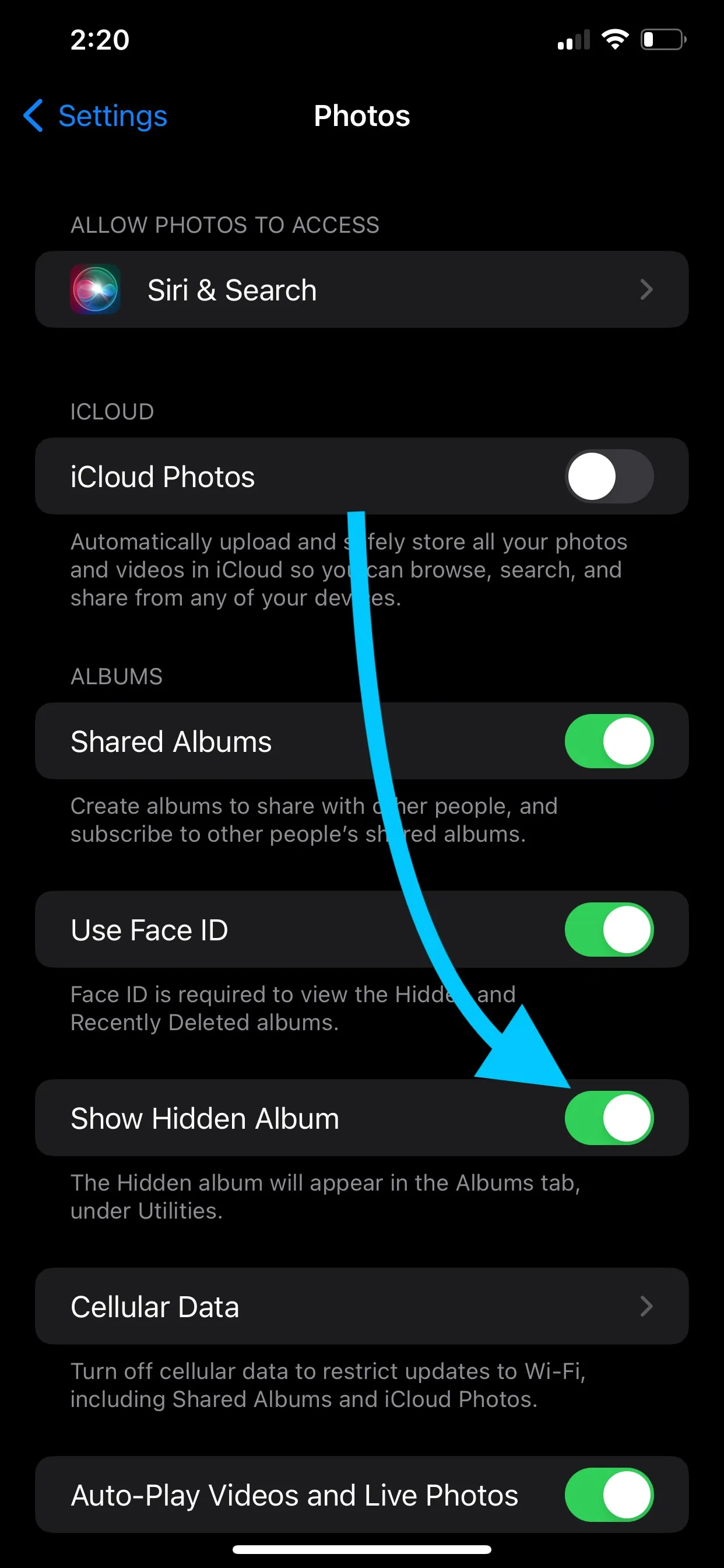
- Lock Hidden Album (iOS 14 and later):
- In iOS 14 and later, you can make the Hidden album invisible in the Photos app.
- Go to Settings > Photos and toggle off “Hidden Album”.

Method 2: Using the Notes App
One of the easiest ways to lock your photos is by using the Notes app. Here’s how:
- Open the Photos App:
- Go to your Photos app and select the photo(s) you want to lock.
- Add to Notes:
- Tap the Share icon (a square with an upward arrow) and select “Add to Notes”.
- Create a new note and save it.
- Lock the Note:
- Open the Notes app and find the note with your photo.
- Tap the Share icon within the note and select “Lock Note”.
- Set a password if you haven’t already, and your note will be locked.
- Delete the Original Photo:
- Go back to the Photos app and delete the original photo to ensure it’s only in the locked note.
Method 3: Using Third-Party Apps
There are several third-party apps designed specifically to lock photos on your iPhone. Some popular options include:
- Private Photo Vault:
- Download the app from the App Store.
- Import the photos you want to lock.
- Set a passcode to protect the app.
- Keepsafe Photo Vault:
- Similar to Private Photo Vault, this app allows you to import and lock photos.
- Provides additional features like break-in alerts and fake PINs.
Tips for Keeping Your Photos Secure
- Regular Backups: Regularly back up your photos to iCloud or a computer to ensure you don’t lose them.
- Strong Passwords: Use strong, unique passwords for any apps or notes containing locked photos.
- Update iOS: Keep your iPhone updated to the latest iOS version for improved security features.
Conclusion
Locking your photos on your iPhone is a simple yet effective way to enhance your privacy and security. Whether you use the Notes app, third-party apps, or the Hidden album feature, each method provides a way to keep your personal photos safe from unauthorized access. Follow these steps and tips to ensure your memories stay private and secure.
Related guides
How to Lock and Unlock Hidden Photos on iPhone?
Updated January 10, 2025
Hidden Photos not showing in Albums – How to fix it?
Updated January 3, 2025
How to Edit EXIF Metadata?: Privacy, Corrections, and more..
Updated November 5, 2024
Managing Photo Metadata for Privacy and Control
Updated October 19, 2024